
Step-by-step guide
How to recover a ZIP password
Three steps, entirely in your browser. Your archive never leaves your device, and for WinZip AES and nearly every ZipCrypto archive a found password is confirmed.
Authorized use only
Use this tool only on ZIP archives you own or are authorized to access. Attempting to open files without permission may violate applicable laws. See our Acceptable Use Policy and Terms of Use.
This walkthrough uses the recovery tool. It works on archives you own or are authorized to open, and everything runs locally. Whether it succeeds depends on the password and the encryption method; a strong, random password on a WinZip AES archive is effectively not recoverable by guessing.
-
1
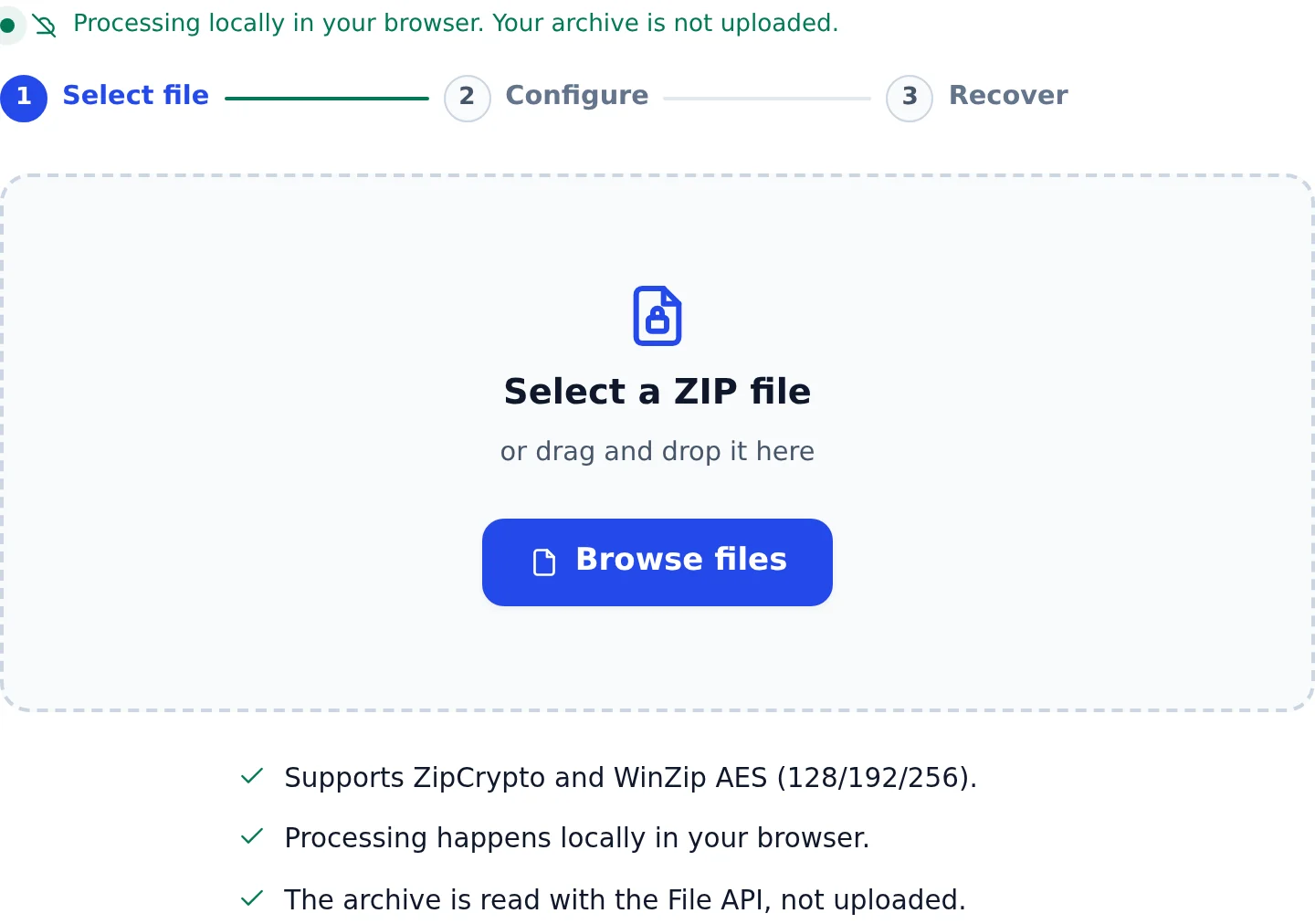
Choose your ZIP file
Drop your .zip on the homepage or the recovery page, or click to browse. It is read and analyzed entirely on your device, and the tool detects whether it uses ZipCrypto or WinZip AES. The archive and its file names are never uploaded. In Safari Private Browsing, choose the file on the recovery page: our tests show a private WebKit session losing a file dropped on the homepage.
-
2
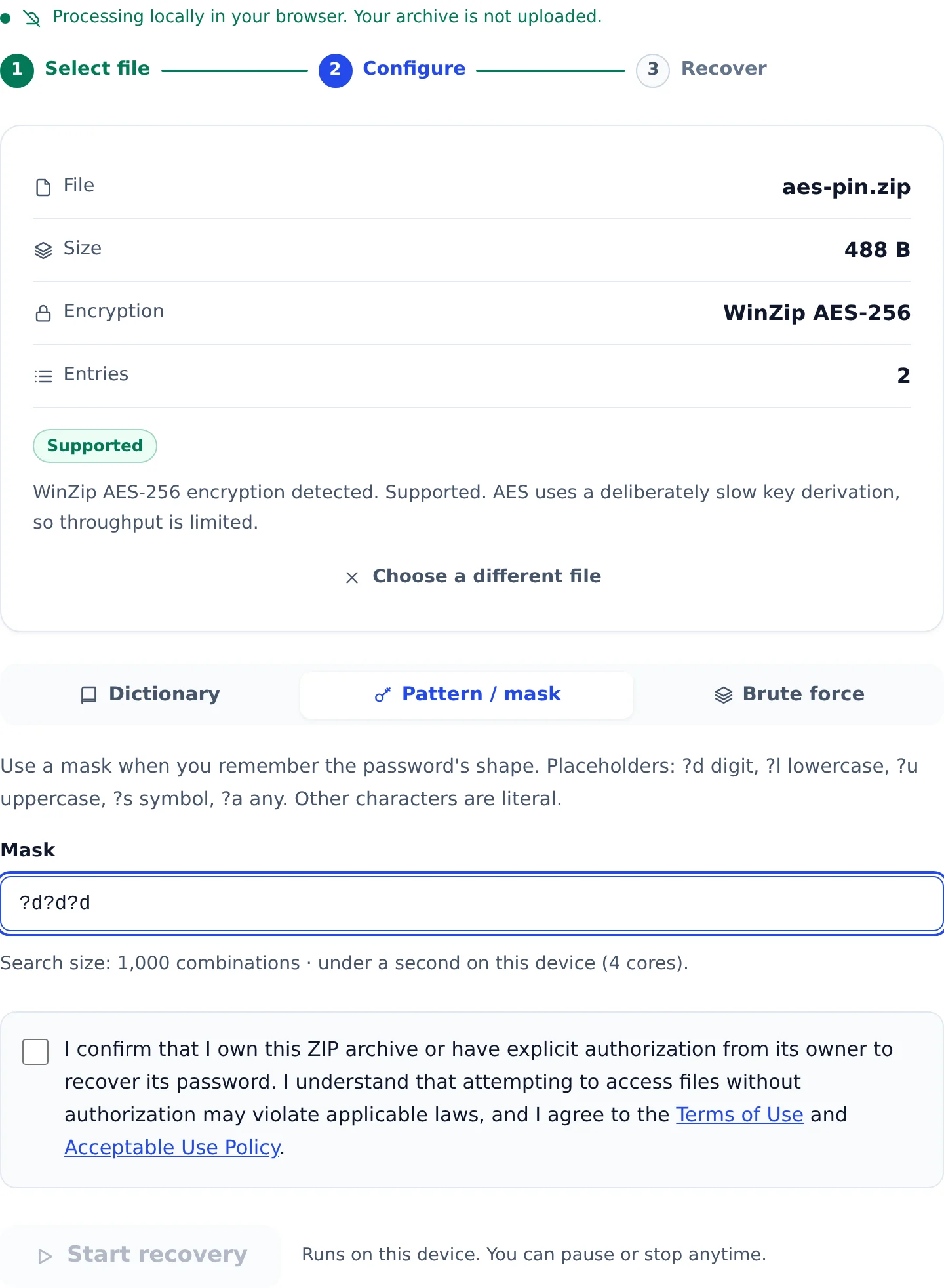
Pick a recovery strategy
Tell the tool what you remember: a wordlist (dictionary), a pattern such as ?d?d?d for the parts you recall (mask), or a full brute force for short passwords. The more you can narrow it, the faster it finishes.
-
3
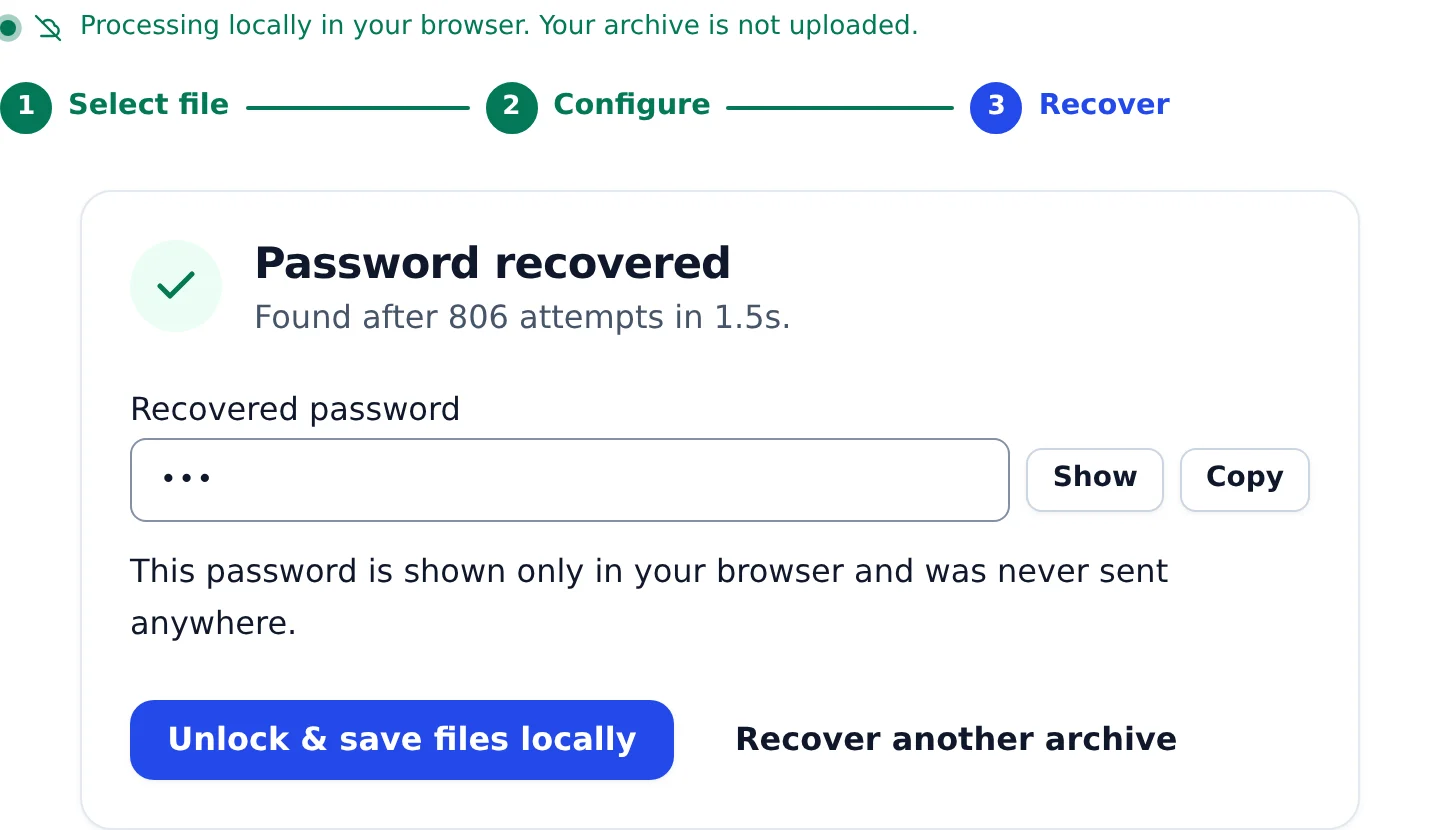
Confirm and recover
Tick the box to confirm you own the archive or are authorized to open it (that unlocks the Start recovery button), then start the search. Candidates run on your GPU when the browser has one, else across all your CPU cores. A match is checked against the archive before it is reported, and the password is shown only in your browser.


Ready to try it?
Open the tool and follow the same three steps with your own archive.
Recover a ZIP passwordReady to recover your ZIP password?
Runs locally in your browser. Your archive never leaves your device.